Home Blog Page 3

Exporting data to File from SQL database table

48
exporting data

Introduction: 

A Package is SSIS can be defined as the unit of work that is retrieved, executed and saved. A package is an organized collection of connections, control flow elements, data flow elements, event handlers, variables, parameters, and configurations assembled using either the graphical design tools like Import and Export Data tools that SQL Server Integration Services provides, or build programmatically using BIDS. After the creation of package, it can be saved SQL Server, or the file system, or you can deploy the package to the SSIS server. The scope of this document is to demonstrate the steps for creating, saving and editing a package using Import Export wizard.

Creation of a Package in SSIS using Import Export Data wizard:

Import Export Data wizard tool is provided as part of Microsoft SQL Server 2008 R2. Import and Export Wizard offers the simplest method to create an Integration Services package that copies data from a source to a destination. The following steps demonstrate the steps to create a package using this wizard tool.

1. To open the Import Export Data wizard, go to start and All Programs and select the wizard as shown in the below figure.

2. When you open the Import Export Data Wizard for the first time, the following wizard window is opened as shown in the picture. If you do not want this wizard window to open every time, you can check the “Do not show this start page again” check box and click on the “Next” button to proceed.

3. In this wizard window set the options for a data source. A Data Source in this case specifies from which the data is going to be retrieved. In this case the data source is a Microsoft SQL Data base called Adventure Works DW. So specify the Data Source as SQL Server Native Client, and fill in the appropriate values in the remaining fields and click on “Next” button.

4. Now we need to choose the destination file for the data to be stored. In this case the destination will be a text file, so give an appropriate name and mention if the file has to allow any special characters. If yes the choose Unicode check box. For this case, that is not required, so it is left unchecked. And also mention the delimiter option. The available formats are delimited. And also mention if the column names should appear in the first column of the exported flat file.

5. Since we are copying the data from existing SQL table data, choose the first radio button as shown in the picture, which simply copies the data from the specified SQL table. If you want to copy the data from a dataset or from a view, choose the second radio button and click on “Next” radio button.

6. Select the name of the source table from which the data need to be pulled to be exported, and specify the delimiter characters and click on Edit Mappings button as shown in the below figure.

7. If the destination file to store the data is chosen as an already an existing file, then the “Create destination file” option is disabled as shown in the figure. And the options for how to store the data in the existing file are enabled. Based on the requirement choose either to delete the existing rows in the destination file or append the rows. If any column name mappings are necessary while transferring the data from source file to destination file, which can be done in this window. Then Click on “OK” button.

8. This wizard window shows how to save the package that is going to be created while exporting data to destination file. If the “Save SSIS Package” option is chosen, the package can be chosen in two different ways. First one is, save the package to SQL server. If this option is selected, the SSIS package is stored to MSDB database. If the “File system” option is selected the SSIS package is stored with .dtsx extension in the same location as where the exported flat file will be saved. You may also select the Package Protection Level and supply values for user name and password and click “Next” button.

9. Now, Set the name and description for the package and specify the applicable authentication and click on “Next” button.

10. Now on completion of creation of package, summary report will appear. Now click on “Finish” button.

11. This window shows how many rows of data is transferred to destination file as shown in the below picture.

Editing the SSIS Package:

When it is needed to edit or debug the package, the following steps are followed.

1. After creating a package using the Import Export wizard tool as described in the document so far, if it is needed to edit the package, Create a new project in SQL Server Data Tools (SSDT) as shown in the below picture.

2. In the Solution Explorer of SSDT, right click on SSIS Packages, and choose an option to add an existing package as shown in the below picture.

3. The following wizard window appears in which supply the server name and package name and click on “OK” button.

4. Now you can click on the package name and package is ready to be edited as shown in the below picture.

5. Make the necessary changes to the package and save it and close the package.

That is it guys .. Try it 🙂

Regards,
Roopesh Babu V

Looping through Files using ForEach Loop container in SSIS 2008 R2

307
lopping

Friends,

In this post we are gonna discuss about Looping through Files using ForEach Loop container in SSIS 2008 R2. For each loop container is used to iterate through collection of objects and in this case we are gonna discuss about looping through each file in the given path.

In te below example we are gonna loop through the files and shown the path of the file in a popup message but in the pace of popup we can write different functionality like moving the files to different folders and so on.

Step 1: Click on Start —-> Programs —–> Microsoft SQL Server 2008 —-> SQL Server Business Intelligence Development Studio

Step 2: Now On below screen Go to File —-> New —-> Project

Step 3: By clicking Project we will get below window. In this window select Integration Services Project and give a proper name to solution and project. Then click OK.

Step 4: You will get following screen. As you can see, it has four tabs Control Flow, Data Flow, Event Handlers and Package Explorer.

Step 5: While staying on Control Flow tab, from toolbox side menu drag and drop For Each Loop Container on Control Flow Pane.

Step 6: Following same step drag Script Task (to popup the path) inside the For Each Loop Container. Name these two tasks with some relevant name. After doing this your screen will look like below. I have given Loop through Files name to For each loop container and Script task to Show file name.

Step 7: Right click on For Each Loop Container select EDIT. Below screen will appear, fill in the required properties:

Below is the list of properties and values to be supplied

Enumerator: For each File Enumerator
Folder: Give full path of folder in which we need to iterate.
Files: *.pdf (this will iterate through all pdf files)
Retrieve file name: Fully qualified (will return full path)

Step 8: Now go to Variable Mappings. Create a new variable as shown on screen. Then click OK. The path of each file will be assigned to this variable while looping.

Step 9: Now right click on Script Task/Show File Name. Select Edit and whenScript Task editor wondow pop up select Edit Script Button

Step 10: Clicking on Edit script will open visual studio code the inside main method we will right code to show a message box with file name in it.

public void Main()

{

MessageBox.Show(Dts.Variables[“FileName”].Value.ToString());

// TODO: Add your code here

Dts.TaskResult = (int)ScriptResults.Success;

}

In ReadOnlyVariables give name of variable which you created to hold file name. In this case it is User::FileName.

Then click OK and return to our package.

Step 11: Now run the package and you will get to sc below result.

This message box is showing iterating through pdf files and showing full path and name.

This was the basic use of For each loop container control flow task. This task can be used in very useful scenarios.

Regards,
Roopesh Babu V

Constraint OR Expression option in SSIS Precedence 2008 R2

0
constraint OR

Introduction:
The control flow in a SSIS package defines the workflow for that package. Control flow determine the order in which tasks will run, it also determines under what conditions they are executed. In other words, certain tasks will run only when a set of defined conditions are met. These conditions in a workflow can be configured by using Precedence Constraints. Precedence constraints link the individual executable and determine how the workflow moves from one executable to the next.

More about Precedence Constraints:
A Constraint is a predefined conditional check in the package that can be used to link between control flow tasks. A task will only execute if the condition that is set by the precedence constraint preceding the task is met. By using these constraints, it is possible to ensure different execution paths depending on the success or failure of other tasks. This means that tasks with precedence constraints can be used to determine the workflow of an SSIS package. If the Constraint Evaluation operation is selected as Expression or Constraint, then both the expression option and Constraint value option are enabled. The following flow charts will explain the possible combinations.

In the above flow chart, Task2 will be executed if the expression is executed successfully or the Task 1 is executed successfully.

In the above flow chart, Task2 will be executed if the expression is executed successfully or the Task 1 is failed as the precedence constraint value is chosen as Failure.

In the above flow chart, Task2 will be executed if the expression is executed successfully or the Task 1 is completed.

Now, to see the precedence with expressions or constraints in action, follow the below steps –

1. Add two SQL tasks to control flow editor of your project as shown in the below figure.

2. Now for each task, set the valid database connections and write the SQL query that is to be executed for each task as shown in the below figure. To set the database connections and to write SQL query, double click on Task rectangle, the the following window will be opened. Then click on “OK” button. Similarly set the database connection and write the valid SQL query for Task1 also.


3. Now, a small arrow will be appeared on Execute SQL Task, drag and drop this arrow mark from Execute SQL Task to Execute SQL Task 1. What this does is we are setting the workflow between these two tasks. Now to set the condition checks to determine upon what constraints these two tasks execute, the precedence constraints need to be set. When double clicked on the arrow line, the following window will appear. Set the Evaluation operation as Expression or Constraint as well as the value for the constraint and click on “OK” button.

4. The control flow pane can be as shown in the below. The fx and the green arrow mark between the task 1 and task 2 denotes that task2 will be executed only when the expression is executed and task 1 is successful.

5. The result can be shown in the below picture.

When both the Task 1 fails and expression evaluates to false then only task2 will not be executed as shown in the below picture.

6. If the precedence constraint value is set to Failure and the expression is successful, the execution of task 1 and task 2 will be as follows.

Now when the task 1 fails to execute and expression is successful, the task 2 executes.

In the below case the task1 fails and the expression evaluates to true. Since one of the conditions is true which satisties the OR condition, so the task 2 is executed.

7. If the precedence constraint is chosen as on Completion and the expression as shown in the below picture.

The blue line denotes that the completion of task and the fx denotes the expression in the below picture.

If both the task 1 fails and the expression is executed to false then the result will be as shown in the below picture.

That is it .. Enjoy ..

Thanks Kranthi for the doc . .

Regards,
Roopesh Babu V

Constraint AND Expression option in SSIS Precedence 2008 R2

282
AND

Introduction:
The control flow in a SSIS package defines the workflow for that package. Control flow determine the order in which tasks will run, it also determines under what conditions they are executed. In other words, certain tasks will run only when a set of defined conditions are met. These conditions in a workflow can be configured by using Precedence Constraints. Precedence constraints link the individual executable and determine how the workflow moves from one executable to the next.
More about Precedence Constraints:
A Constraint is a predefined conditional check in the package that can be used to link between control flow tasks. A task will only execute if the condition that is set by the precedence constraint preceding the task is met. By using these constraints, it is possible to ensure different execution paths depending on the success or failure of other tasks. This means that tasks with precedence constraints can be used to determine the workflow of an SSIS package. If the Constraint Evaluation operation is selected as Expression and Constraint, then both the expression option and Constraint value option are enabled. The following flow charts will explain the possible combinations.

In the above flow chart, Task2 will be executed only if the expression is executed successfully and the Task 1 is executed successfully.

In the above flow chart, Task2 will be executed only if the expression is executed successfully and the Task 1 is failed as the precedence constraint value is chosen as Failure.

In the above flow chart, Task2 will be executed only if the expression is executed successfully and the Task 1 is completed.

Now, to see the precedence with expressions and constraints in action, follow the below steps –
1. Add two SQL tasks to control flow editor of your project as shown in the below figure.

2. Now for each task, set the valid database connections and write the SQL query that is to be executed for each task as shown in the below figure.  To set the database connections and to write SQL query, double click on Task rectangle, the the following window will be opened. Then click on “OK” button. Similarly set the database connection and write the valid SQL query for Task1 also.


3. Now, a small arrow will be appeared on Execute SQL Task, drag and drop this arrow mark from Execute SQL Task to Execute SQL Task 1. What this does is we are setting the workflow between these two tasks. Now to set the condition checks to determine upon what constraints these two tasks execute, the precedence constraints need to be set. When double clicked on the arrow line, the following window will appear. Set the Evaluation operation as Expression and Constraint as well as the value for the constraint and click on “OK” button.

4. The control flow pane can be as shown in the below. The fx and the green arrow mark between the task 1 and task 2 denotes that task2 will be executed only when the expression is executed and task 1 is successful.

5. The result can be shown in the below picture.

6. When the supplied expression is not executed successfully or the task 1 is not successful, the task 2 will not be executed.

7. If the precedence constraint value is set to Failure and the expression is successful, the execution of task 1 and task 2 will be as follows.

Now when the task 1 fails to execute and expression is successful, the task 2 executes. If the task 1 executes successfully and expression is true then task 2 will not be executed.

 8. If the precedence constraint is chosen as on Completion and the expression as shown in the below picture.
The blue line denotes that the completion of task and the fx denotes the expression in the below picture.

If the task 1 fails or the expression is executed to false then the result will be as shown in the below picture.

If the task 1 fails or the expression is executed to false then the result will be as shown in the below picture.

This is it .. a complete detailed post on the same.. Thanks Kranthi for the beautiful doc.. Waiting for more like this ..

Regards,
Roopesh Babu V

Precedence Constraint with EXPRESSION in SSIS 2008 R2

10
expression

Frirends,

Introduction:
The control flow in a SSIS package defines the workflow for that package. Control flow determine the order in which tasks will run, it also determines under what conditions they are executed. In other words, certain tasks will run only when a set of defined conditions are met. These conditions in a workflow can be configured by using Precedence Constraints. Precedence constraints link the individual executables and determine how the workflow moves from one executable to the next.
More about Precedence Constraints:
A Constraint is a predefined conditional check in the package that can be used to link between control flow tasks. A task will only execute if the condition that is set by the precedence constraint preceding the task is met. By using these constraints, it is possible to ensure different execution paths depending on the success or failure of other tasks. This means that tasks with precedence constraints can be used to determine the workflow of an SSIS package

If the Constraint Evaluation operation is selected as Expression, then the expression option is enabled, where an expression can be supplied to control the workflow of the tasks in control flow.

In the above flow chart, Task2 will be executed only if the expression is executed successfully.

Now, to see the precedence constraints with expressions in action, follow the below steps.
1. Add two SQL tasks to control flow editor of your project as shown in the below figure.

2. Now for each task, set the valid database connections and write the SQL query that is to be executed for each task as shown in the below figure.  To set the database connections and to write SQL query, double click on Task rectangle, the the following window will be opened. Then click on “OK” button. Similarly set the database connection and write the valid SQL query for Task1 also.

3. Now, a small arrow will be appeared on Execute SQL Task, drag and drop this arrow mark from Execute SQL Task to Execute SQL Task 1. What this does is we are setting the workflow between these two tasks. Now to set the condition checks to determine upon what constraints these two tasks execute, the precedence constraints need to be set. When double clicked on the arrow line, the following window will appear. Set the constraint as well as the value for the constraint and click on “OK” button. Here I have given Valid Expresion DatePart(m,GetDate()) == 9.

4. The control flow pane can be as shown in the below. The fx denotes that the task2 will be executed only the expression is executed successfully.

5. The result can be shown in the below picture.

6. When the supplied expression is not executed successfully like Here I have given Valid Expresion DatePart(m,GetDate()) == 22 which is not valid, the task 2 will not be executed even though the task 1 is executes successfully.

This is it guys .. Hope you will try .. Thanks Kranthi for the document.

Regards,
Roopesh Babu V

Precedence with CONSTRAINT in SSIS 2008 R2

54
precedence

Introduction:

The control flow in a SSIS package defines the workflow for that package. Control flow determine the order in which tasks will run, it also determines under what conditions they are executed. In other words, certain tasks will run only when a set of defined conditions are met. These conditions in a workflow can be configured by using Precedence Constraints. Precedence constraints link the individual executables and determine how the workflow moves from one executable to the next.

More about Precedence Constraints:

A Constraint is a predefined conditional check in the package that can be used to link between control flow tasks. A task will only execute if the condition that is set by the precedence constraint preceding the task is met. By using these constraints, it is possible to ensure different execution paths depending on the success or failure of other tasks. This means that tasks with precedence constraints can be used to determine the workflow of an SSIS package

The Constraint Evaluation operation can have thee possible values, Success, Failure, and Completion. Below flow charts explain the constraints with all possible values.

In the above flow chart, Task 2 will be executed only when the Task 1 is executed successfully. So the constraint value success is represented in a green arrow mark from Task 1 to Task 2.

In the above flow chart, Task 2 will be executed only when the Task 1 is failed to execute. The constraint value failure is represented with a red arrow mark from Task 1 to Task 2.

In the above flow chart, regard less of the Task1 success or failure, Task 2 will be executed upon the completion of Task 1.

Now, to see the precedence constraints in action, follow the below steps.

1) Add two SQL tasks to  control flow editor of your project as shown in the below figure.

2) Now for each task, set the valid database connections and write the SQL query that is to be executed for each task as shown in the below figure. To set the database connections and to write SQL query, double click on Task rectangle, the the following window will be opened. Then click on “OK” button.

Similarly set the database connection and write the valid SQL query for Task1 also.

3) Now, a small arrow will be appeared on Execute SQL Task, drag and drop this arrow mark from Execute SQL Task to Execute SQL Task 1. What this does is we are setting the workflow between these two tasks. Now to set the condition checks to determine upon what constraints these two tasks execute, the precedence constraints need to be set. When double clicked on the arrow line, the following window will appear. Set the constraint as well as the value for the constraint and click on “OK” button.

4) When the package is executed, if the first task is executed successfully, then only the workflow allows the second task to be executed as shown in the below figure.

5) If the first task fails to execute, then the second task will not be executed because the precedence constraint value is set to success.

6) If the precedence constraint value is set to Failure, as shown in the below picture, the task 2 will be executed only when the task 1 is failed. If the task 1 is executed successfully, then the task2 will not be executed. These two scenarios are shown in the following pictures.

7) As the precedence constraint value is set to Failure, the arrow mark is set to red as shown in the picture, the task 2 will be executed only when the task 1 fails.

8) If the precedence constraint value is set to Completion as shown in the below picture, the arrow mark from task 1 to task 2 will turn to blue color indicating that, irrespective of task1 success or failure, task 2 will be executed upon completion of task 1. This can be shown in following pictures. Set the precedence constraint value to Completion.

9)  The arrow mark will turn to blue, indicating the precedence constraint value is set to completion.

10) Task 2 will be executed upon the completion of task 1 even if the task 1 is failed to execute successfully.

11) In this case task 2 is executed upon the completion of task 1 which is executed successfully.

That is it guys . .hope you understood the concepts ..

Thanks a lot KRANTHI for the document shared.

Regards,
Roopesh Babu V

Returning Single Row using Execute SQL Task in SSIS 2008 R2 with Example

7
single row

Friends,

The Execute SQL task is one of the handier components in SQL Server Integration Services (SSIS) because it lets you run Transact-SQL statements from within your control flow. The task is especially useful for returning result sets that can then be used by other components in SSIS package.

The Execute SQL task runs SQL statements or stored procedures from a package. The task can contain either a single SQL statement or multiple SQL statements that run sequentially. We can use the Execute SQL task for the following purposes:

  • Truncate a table or view in preparation for inserting data.
  • Create, alter, and drop database objects such as tables and views.
  • Re-create fact and dimension tables before loading data into them.
  • Run stored procedures. If the SQL statement invokes a stored procedure that returns results from a temporary table, use the WITH RESULT SETS option to define metadata for the result set.
  • Save the rowset returned from a query into a variable.

The Execute SQL task can be used in combination with the Foreach Loop and For Loop container to run multiple SQL statements. These containers implement repeating control flows in a package and they can run the Excute SQL task repeatedly. For example, using the Foreach Loop container a package can enumerate files in a folder and run an Execute SQL task repeatedly to execute the SQL statement stored in each file.

When using the Execute SQL task to return a result set, we must also implement the necessary variables and parameters to pass data into and out of the T-SQL statement called by the task.

In this scenario, I’ll use  Execute SQL task. The  task retrieves a single value from a table in theAdventureWorks2008 database. That value is returned by the task as a single-row result set.

Adding  Variable to the SSIS Package

The first variable I’ll create is the EmpNum variable. If the Variables window is not open, right-click the Control Flow workspace, and then click Variables. In the Variables window, add a new variable by clicking on the Add Variable icon.

Name the new variable EmpNum, and ensure that the scope is set at the package level, as indicated by the package name. (Here my package name is Execute sql task with single row). Next, set the data type to Int32 and the value to 0. The Execute SQL task will use the variable to store the value it retrieves from the database.

Now drag and drop Execute Sql Task to Control Flow pane.

Adding a Connection Manager to the SSIS Package

The next step is to create a connection manager that points to the AdventureWorks2008 database. Right-click theConnection Manager s window, and then click New OLE DB Connection

When the Configure OLE DB Connection Manager dialog box appears, click the New button to launch theConnection Manager dialog box.From the Server name drop-down list, select the name of your SQL Server instance, and then select an authentication type. From the Select or enter a database namedrop-down list, select  database.  you can see, I selected SQL Server instance, Windows Authentication as my authentication type, and the AdventureWorks2008 as my database.

Be sure to test the connection by clicking the Test Connection button. If the connection is good, click OK to close the Connection Manager dialog box.

When you’re returned to the Configure OLE DB Connection Manager dialog box, you’ll see that your new connection has been added to the Data connections section. Click OK to close the dialog box. Your connection should now be listed in Connection Managers window.

If you want, you can rename your connection manager to something more appropriate. To do so, right-click the connection, click Rename, and type in the new name.

Returning a Single-Row Result Set

Execute SQL task will return a single-row result set, which in this case, will contain only one value.

In this example, I’ll retrieve the highest BusinessEntityID value from the HumanResources.Employee table. I’ll start by using the first Execute SQLtask to retrieve the value and pass it to the EmpNum variable.

To get started, drag the Execute SQL task onto the Control Flow design surface. Then double-click the task to open the Execute SQL Task Editor. The editor opens to the General page

.

Notice that the General section contains the Name property and the Description property. The Name property refers to the task name. You should name the task something suitable.

The next section on the General page is Result Set. Notice that this section includes only the ResultSetproperty.

In this exercise, our query will return only a single value. Consequently, we will choose the Single row option.

Our next step is to associate our result set value with a variable that will store the value we retrieve from the database. To do this, go to the Result Set page of the Execute SQL Task Editor.

The main grid of the Result Set page contains two columns: Result Name and Variable Name. Click the Addbutton to add a row to the grid. In the Result Name column, enter the column name returned by your query (MaxEmpID). In the Variable Name column, select the User:: EmpNum variable.


If our single-row result set contains multiple columns, we would have had to map a variable to each column. However, because we returned only one value, we needed only one mapping.

Once you’ve associated your result set value with a variable, click OK to close the Execute SQL Task Editor. The task should now be set up to return a single-row result set.

Thanks a lot Archana for the document and it is well designed.

Regards,
Roopesh Babu V

Input, Output and Return Values in SSIS Execute Sql Task

72
return values

Friends,

In this post we are gonna discuss about all the THREE Parameter directions INPUT,OUTPUT and RETURN VALUE in Execute Sql Task. I am pretty sure that most of the SSIS developers might have used this task many times but at least few of them still not clear about how to use the three directions of Parameter and this post is for that set of people.

I can explain the INPUT direction by using any Sql Statement but to explain all the three Stored Procedure is the best option to choose. So, in this post I am gonna use SP to demonstrate the same.

I have created a damn simple SP with one parameter to demonstrate INPUT parameter and you can see the same in the below given SC.

Here I created a Stored Procedure “test” with a  Input Parameter @PrdKey

Now let’s see how to call the same in the Execute Sql Task.

1)     Drag and drop an Execute Sql Task to control flow and double click or right click and select Edit to set the properties.

2)     Once the properties wizard opens then set the connection to the database and use the following query for Sql Statement.

Exec test ?

3)     The ? in the above query means, it is a parameter for which the value will be assigned at runtime using variable.


4)     Now go to the Parameter Mapping page to map the parameter (variable) which will provide value to the “?” provided in the query.

5)     Under variable name select the variable which provides value to the query parameter.

6)     Under direction we will have THREE options and select INPUT as we are inputting the value to the parameter.

7)     Under datatype select the appropriate datatype and in this case I have selected LONG as the parameter for the SP.

8)    Under parameter Name property set 0 (Zero) as we have only one parameter in our query.

The parameter name values will be as given below –

? –> 0

?,? –> 0,1

?,?,? –> 0,1,2

The parameter name will be interger values starting from ZERO and it will be mapped in such a way that first ? will be replaced with first parameter (parameter name 0) and second one with second parameter ( parameter name 1) ….

9)     Now select OK and Execute.

10)  Now I created a SP with all the three values i.e Input Parameter, Output Parameter and also RETURN Value as shown below.

11)   Here @ProductKey is input , @ProductName is Output and “16” is Return Value parameter created stored procedure. Remember that SP can return ONLY Integer values.

12)  Now the query for this SP will be like given below in Execute Sql Task –

Exec ? = Test_sp ? , ? OUTPUT  

13) Here first ? is Return Value parameter, second ‘?’ Is Input parameter and third ‘?’ with OUTPUT keyword is output parameter

14)   Now Open Parameter Mapping and create Variable and Map it to the ‘?’ as explained above Section. Remember that the parameters assigning should follow sequence and in our example first one should be RETURN VALUE Parameter then INPUT and finally OUTPUT.

INPUT – Used for Input variables. The value will be passed from calling environment.

OUTPUT – Used for Output variable and value will be returned to calling environment.

RETURN VALUE – The value which is returned by SP.

15)  Here I created three variable Count for returnValue ,MinValue for Input and ProductName for the output and order them as 0,1,2 as per there occurrence.

16)  Click Ok and now we can pass values to the variables in the Variable window and run the package.

Note – We can configure OUTPUR (Result set) to return Table/XML/Single Row which will be discussed in next post.

Thanks a lot to Swati Srivastava for providing most of the content and SC to draft this post.

Regards,
Roopesh Babu V

Importing Text file data to Sql Server Table

0
import text file

Friends,

In this post, we are going to discuss on HOW to move the data from a text file to Sql server database table. To achieve the same we are going to use Sql Server Import Export Wizard. This wizard helps to move the data for one source database (can be anything like RDBMS, Text files, Excel …) to destination database (can be anything like RDBMS, Text files, Excel …). Follow the below given steps –


1)      The first and foremost step is to make the source ready and in our case it is flat file and created a flat file with four columns separated by TAB and rows by NEW COLUMN.

2)     Now launch the Import and Export Wizard which is made available in many placed by Microsoft. In this post I will launch the wizard from below given path. All Programs àMicrosoft SQL Server 2008 à Import and Export Data (64-bit). Selected 64 bit as my system is 64 and you choose as per your system bit.

3)      Clicking on Import and Export data will launch below shown wizard. Here we will fill in data about source and in our case it is Flat File –

4)       Our source is txt file, so as already mentioned in screenshot we need to specify Data Source as Flat File, then in File name browse to file on disk. In Format select delimited as our text file has delimiter to segregate column values. Check Column names in the first data row.

5)      Now click on Next or Columns to open below window. You can see preview of data here by clicking Preview.

6)      Now clicking on next will go to Destination configuration window as displayed below. According to our requirement our destination in SQL server, therefore select OLEDB connection manager. Give Server Name and User Credentials to connect to server. Select database where importing needs to be done. Then click next.

7)      Here we can map source with destination table. Edit Mapping can be used to change table structure and few other options. Here also we can see preview of data which is being imported. Remember that by default it will look for the destination table with the file name and if not available it will create new one. You can select if the destination table is other than the table name it is showing by simply clicking on the destination table name.

8)      Below screen shows screen which will come when edit mapping will be clicked. Here you can check/change the data types and also few other options shown below.

9)      Click OK and below screen will appear. We have few options available here. Here we will select Run immediately if you don’t want to save package. If you need to Save the package for future run then you can select the option “Save SSIS Package”.

10)   Now click next. Next window will list a flow of actions which will be executed.

11)   Now click Finish and data will be imported as shown below. Please check for all success messages.

12)   Open Microsoft Management and run below query and check if data has been successfully imported or not.

That is it guys!! Easy right… Give a try… J

NOTE – This post is by Pallavi Singh (My Student). I just edited and uploaded to my site. Special thanks to Pallavi for the beautiful Screenshots.

Regards,
Roopesh Babu V

How to stop prompting for UserName and Password when I click Report Server Web Service URLs

0
stop

Guys,
This is one of the most common issue you will face when you try to connect to the ReportManager. When I searched for the same in GOOGLE, I got too many options and I tried most of them. Here I would like to give the most simplest way to solve this issue. PFB the steps to be followed to fix this issue.

Actually, RSAccess Denied error comes when the its think that you are not a authorized user  to use it, even though you are. To solve it we need to do some changes in the browser settings.

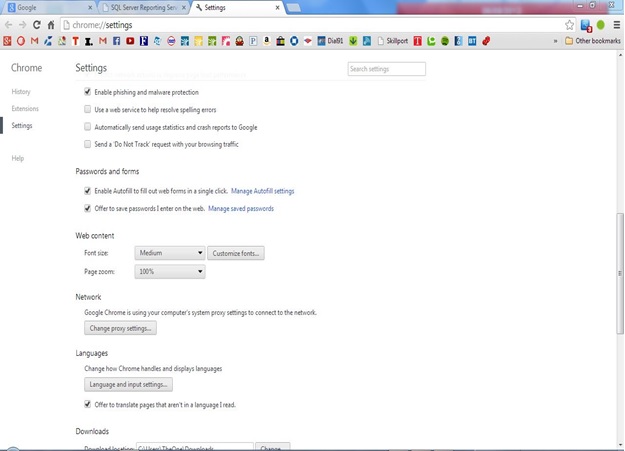
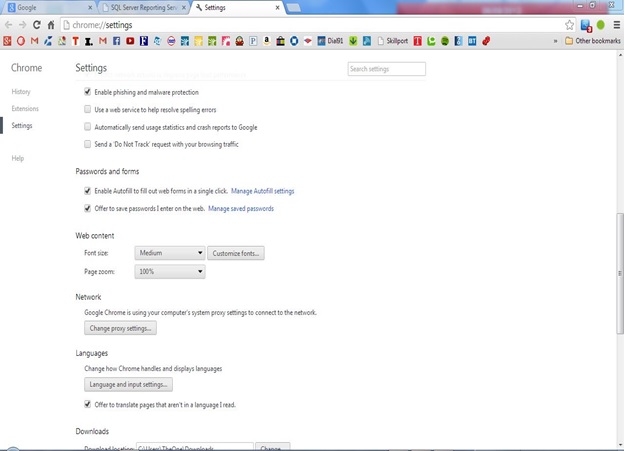
1) Select Browser Setting :

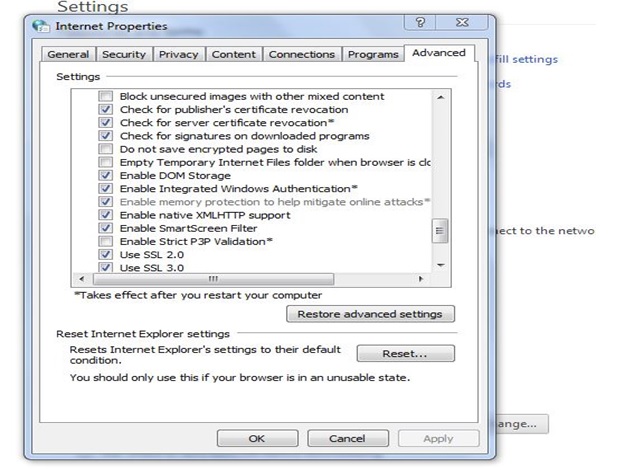
2) In this select Advance Setting and Into it Network Setting:

3) Make sure that Enable Integrated Windows Authentication is checked.

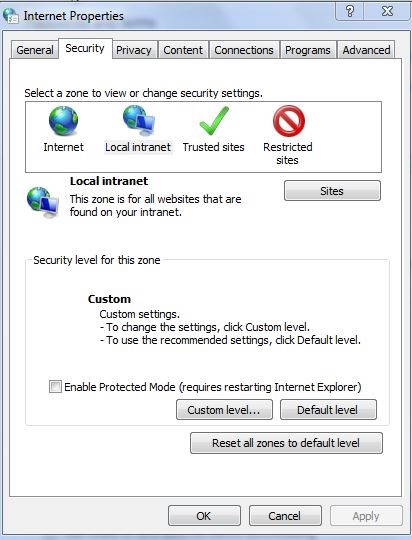
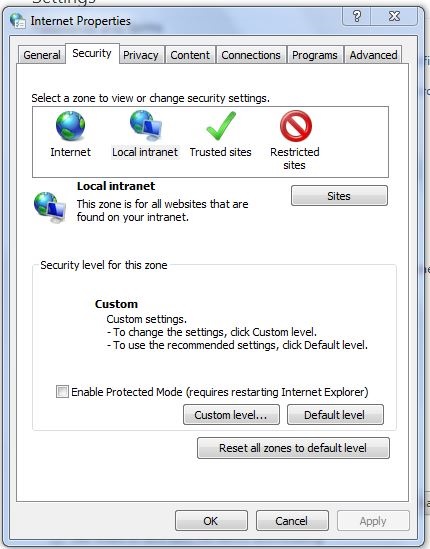
4) Now select Security and in it Local System, then go to sites.

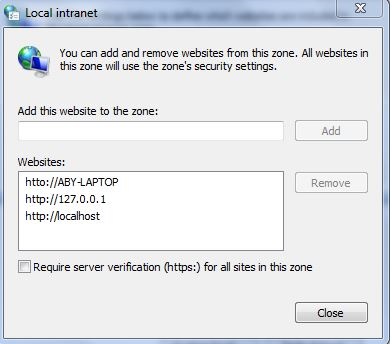
5) In sites , then into Advanced, Make sure that your computer name must be listed in the available website list and then select close.

6) On the security page go down and select “Custom Level”.

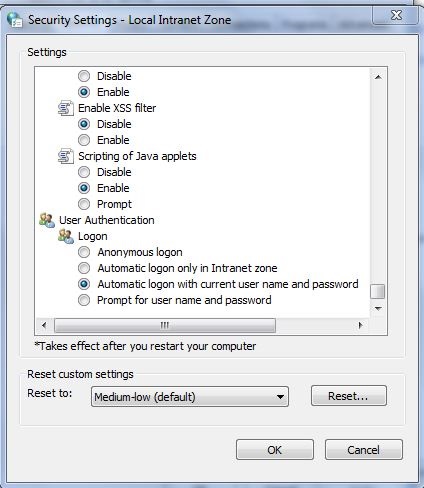
7) In Custom Level drag down and select – “Automatic Logon with Current username and Password” and save the changes.

8) Close the browser and Run it again as administrator. Click the Report Server and Manager URL. I will take you to the page without asking for authentication credentials.

That’s it guys .. Happie Coding!!

Regards,
Roopesh Babu V

Custom Legend in SSRS Charts

457
custom legend

Guys,

While designing charts, when you select a Data field and a column under category then the name of the data field will be shown as LEGEND which, sometimes, doesn’t look good as you can see below.

In the above report, I selected Sales Amount field under Data Fields and hence Legend is showing as SALES AMOUNT and if you wish to change the default Legend Name to a Custom one then follow the steps given below.

  • Right click on the Data Field and select Series Properties option.

  • Select Legend Page and provide the Custom Legend name you wish to provide. In this example I am giving “Sales” as the Legend. you can also make it dynamic by using Fx option available.

  • Select OK and Preview the report. You can see the Custom Legend set.

This is it guys .. Happie Coding !!

Regards,
Roopesh Babu V

How to set IE as default Bowser

593
IE

Guys,

While browsing, we all set either Chrome or Firefox or many other different browsers as default to make the smooth browsing as IE really sucks. But, when it comes to Deploying of SSRS reports, the best one among all the browsers is IE. While deploying the reports, it will take the default browser to connect to Report Server. So, to change back the IE as default browser follow the below given steps.

  • Go to Control Panel.
  • Select Network and Internet from the options.
  • Click on the Programs tab, then select Set your default programs.
  • Select Internet Explorer from the options and Make it as default and then Click OK.

That’s it .. Now your default browser is IE .. 🙂

Regards,
Roopesh Babu V

MSBI Training Part 57

4

Friends,

This is the 57th video from the series of videos. In this video we are gonna discuss about the following topics –

  • Batch
  • Routines
  • Procedural Extensions
  • Stored Procedures
  • Functions


Hope you understood the concepts and start browsing the next one ..

Regards,
Roopesh Babu V

MSBI Training Part 56

131

Friends,

This is the 56th video from the series of videos. In this video we are gonna discuss about the following topics –

  • T-Sql Programming
  • Cursors
  • Cursor Options
  • Cursor Directions


Hope you understood the concepts and start browsing the next one ..

Regards,
Roopesh Babu V

MSBI Training Part 55

1

Friends,

This is the 55th video from the series of videos. In this video we are gonna discuss about the following topics –

  • Triggers
  • DML Triggers
  • DDL Triggers
  • After Triggers
  • Instead of Triggers


Hope you understood the concepts and start browsing the next one ..

Regards,
Roopesh Babu V

MSBI Training Part 54

22

Friends,

This is the 54th video from the series of videos. In this video we are gonna discuss about the following topics –

  • Isolation Levels – Part 2


Hope you understood the concepts and start browsing the next one ..

Regards,
Roopesh Babu V

MSBI Training Part 53

2

Friends,

This is the 53th video from the series of videos. In this video we are gonna discuss about the following topics –

  • Isolation Levels

Hope you understood the concepts and start browsing the next one ..

Regards,
Roopesh Babu V

MSBI Training Part 52

18

Friends,

This is the 52th video from the series of videos. In this video we are gonna discuss about the following topics –

  • Lock Hints
  • Lock Granularity
  • Dead Locks
  • Lock Timeout


Hope you understood the concepts and start browsing the next one ..

Regards,
Roopesh Babu V

MSBI Training Part 51

19

Friends,

This is the 51th video from the series of videos. In this video we are gonna discuss about the following topics –

  • Concurrency
  • Pessimistic Concurrency
  • Optimistic Concurrency
  • Concurrency Issues
  • Lost or buried updates.
  • Uncommitted dependency (dirty read).
  • Inconsistent analysis (nonrepeatable read).
  • Phantom reads.
  • ACID Properties
  • Transaction Log
  • Locks
  • Lock Duration
  • Lock Modes
  • Shared Lock
  • Exclusive Lock
  • Update Lock
  • Intent Lock


Hope you understood the concepts and start browsing the next one ..

Regards,
Roopesh Babu V

MSBI Training Part 50

495

Friends,

This is the 50th video from the series of videos. In this video we are gonna discuss about the following topics –

  • Nested Transactions
  • Save Points in Transactions
  • Error handling in Transactions


Hope you understood the concepts and start browsing the next one ..

Regards,
Roopesh Babu V